Establish a centered reference
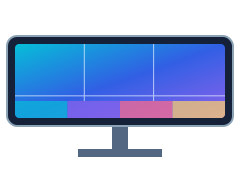
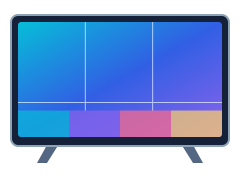
Place the screen where you normally use it and sit directly in front of its center. Choose Color patches and inspect each labeled area before moving. The codes describe the browser image: red is 255/0/0, neutral mid gray is 128/128/128, and white is 255/255/255. They are not measurements of the light reaching your eyes. Keep display brightness, color mode, and room lighting unchanged through each comparison.
Enter fullscreen if useful and hide labels to inspect subtle differences. The labels provide a repeatable reference but their dark backgrounds can attract attention. Look at the same region before and after moving, rather than comparing one color on the left with another on the right. Exit with Escape or the Exit button. A browser that cannot enter native fullscreen uses an expanded view, which may still show browser controls.
Move physically and compare the same patches
Move your head a little left, then right, while keeping approximately the same distance from the screen. Return to center between observations. Next look from slightly above and below, especially on a laptop whose lid angle can change the apparent shadow detail. Move gradually; there is no need for extreme angles or for touching or flexing the panel. The page cannot measure your angle, so describe your position consistently if you record results.
Switch to Gray steps and repeat the motion. Notice whether dark regions wash out, middle grays change tint, or bright areas appear less neutral. A panel may change brightness off axis without producing the same color shift. For a large screen, its edges already sit at different angles from your eyes even while you are centered. A curved display changes this geometry. Your normal viewing distance and seating position therefore matter to interpretation.
Interpret position-dependent changes
Viewing-angle behavior depends on panel design, surface treatments, and the optical path, but this tool cannot identify a panel type from appearance alone. A shadow that changes when you move may be related to viewing angle rather than a fixed dark patch. Use the uniformity field from a centered position to inspect persistent spatial variation, and use the backlight test if a dark LCD scene has bright corners.
Reflections can move with your head too. Repeat the check with a nearby lamp switched off or a window shaded before attributing the change to the panel. Polarized glasses can alter the image strongly at some orientations. Remove them for a separate comparison if relevant. Browser color management, HDR, night filters, and application differences can change the reference image, so avoid comparing separate applications as if they shared identical rendering.
For practical decisions, judge your ordinary seating positions and shared viewing arrangements. A shift visible at an extreme side angle may have little effect on solo desk work but matter when two people share a screen. Record which patches change, the direction you moved, and whether returning to center restores the original appearance. This is a visual comparison, not a certification of viewing angle, color accuracy, or a display manufacturer's specification.
Example: a shared screen that changes from the side
Suppose the gray steps look distinct from your usual centered seat but merge when you sit beside another viewer. Keep the same pattern and inspect the same steps from each seat, returning to center between observations. If their separation returns at center, that is a position-dependent difference worth documenting. The page cannot turn your seating positions into measured viewing angles or identify the panel technology.
Before blaming the screen, shade a reflected window or switch off a lamp that appears in the image from the side, then repeat the comparison. For shared viewing, judge the seats you actually use rather than an extreme position. A patch that persists at the same screen location from the centered seat needs a separate uniformity check; it is a different observation from contrast changing as you move.
Frequently asked questions
Does the tool measure my viewing angle?
No. The browser cannot determine your physical eye position relative to the panel. Move consistently and describe your seating position; any numeric angle requires separate geometry or measurement.
Why do the corners look different while centered?
On a large panel the corners are seen at a different angle than the center. Distance, curvature, reflections, and actual panel variation can contribute, so compare after moving farther back.
Are these calibrated color patches?
They use explicit RGB image values but are not calibrated light output. The display mode, browser processing, system color management, and ambient light all affect the colors you see.
Can polarized glasses affect this test?
Yes. Their orientation can change brightness or color on some displays. Compare with and without them to separate eyewear effects from the display behavior at your normal viewing position.
How do I distinguish uniformity from angle changes?
Return to the same centered position and compare a single uniform gray field. A feature that stays in the same screen location is different from a shift that changes as you move.